Turo Mileage Tracking: How Hosts Keep Accurate Records and Bill Overage Fairly
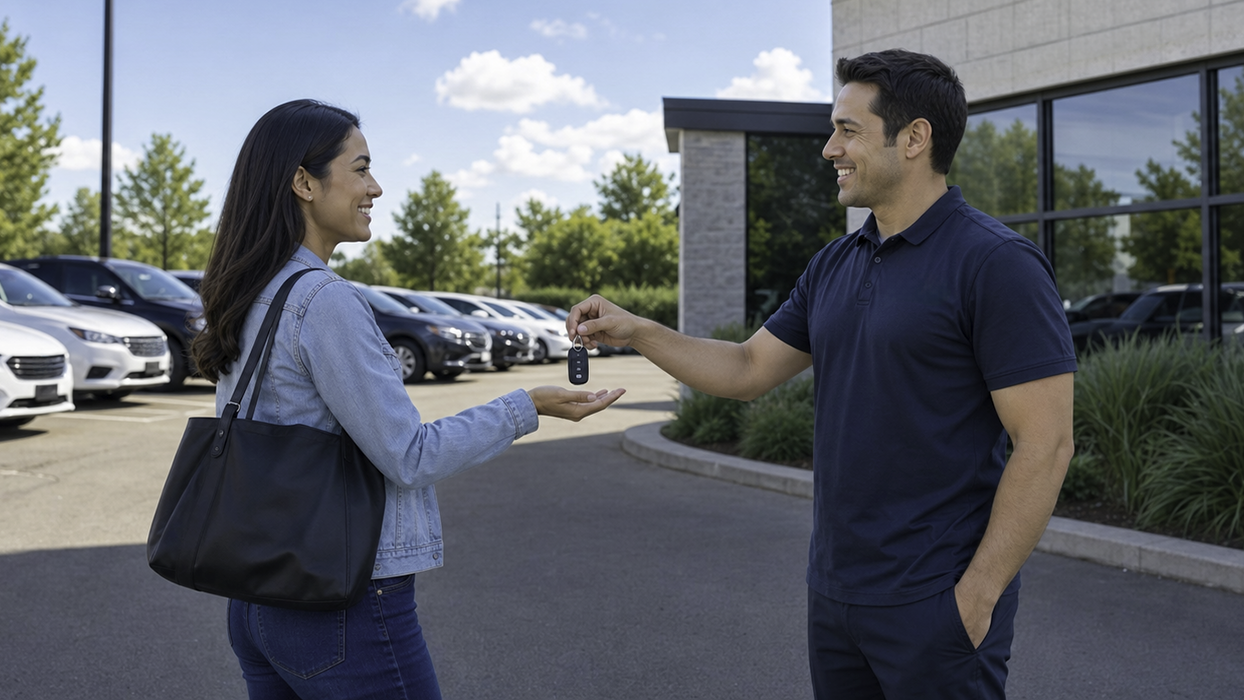
If you have a car to spare, or a whole fleet of them, Turo has proven to be an excellent way to monetize your automotive assets. As the Turo host, you provide a car to the guest, who typically follows the platform’s rules and returns the car on time. The guest’s needs are met, and you’ve earned income. But then something like this happens:
- The guest returns your vehicle three hours late. They drop the key in the dropbox and leave right away.
- You check the car the next morning, and the odometer shows they drove 350 miles past the trip limit.
- You submit a reimbursement invoice for the overage.
- The guest disputes the extra charge.
- The platform asks for your documentation.
This is the moment a Turo host realizes the difference between knowing a guest drove extra miles and being able to prove it. Turo mileage tracking is the practice of recording a vehicle's mileage at the start and end of every trip, so a host can prove how far a guest drove and bill any distance beyond what the trip included. Numbers jotted in your phone's Notes app, or remembered from a glance at the dashboard, will not settle a dispute.
The Overage Charge You Cannot Defend
Unbilled miles add up. A single overage can look small, but every extra mile adds depreciation and tire and brake wear, and those costs are real. Resale value also drops as the odometer climbs. Without documentation to prove the overage, you absorb all of it.
It doesn't have to be this way. This guide covers Turo mileage tracking from the host's side, including what an accurate mileage record contains, where common capture methods fail, and how to send an additional distance invoice that holds up when a guest disputes it.
What Counts as an Accurate Mileage Record
In a dispute over a Turo overage charge, the accuracy of your records decides the outcome. An accurate mileage record meets five criteria:
- Per-trip tracking: The mileage data must cover only the trip in question. A monthly tally, which you then filter down to the time the guest had your car, is not precise enough to resolve a billing dispute.
- Defined start and end points: Similarly, the record must document only the time the guest had custody of the vehicle, with clearly demarcated start and end timestamps.
- Time-stamped at capture: Dates and times must be recorded automatically when each reading is taken, whether by photo metadata or a tracking log, not reconstructed after the fact.
- Vehicle identification: Every entry must be bound to a specific vehicle identification number (VIN) or a unique fleet identifier that proves the guest drove your car.
- Retrievability: You must be able to export or produce the complete mileage record months later.
If you host more than one vehicle, meeting these criteria matters even more. Manually tracking multiple vehicles leads to an administrative headache, like cross-referencing trip reservations against photo albums across three, five, or ten cars. This will come back to bite you in a Turo mileage dispute.
How Hosts Actually Capture Mileage, and Where Each Method Breaks
Many hosts still rely on record-keeping methods that depend on manual effort, and most of them fall apart when a dispute arises. Understanding where each method fails helps you strengthen your documentation before a dispute occurs.
Here’s a look at the popular forms of Turo mileage tracking, and where each breaks down:
Odometer Photos at Handoff
Taking high-resolution photos of the dashboard at vehicle handoff times is standard practice across the car-sharing industry.
- What it’s good at: Since you likely already have a smartphone to run the Turo app, you have a high-resolution camera in your pocket. Odometer photos are an essentially free solution that can work if you follow a meticulous process.
- Where it breaks: This method requires extreme consistency, and Turo is specific about what it accepts. When you correct the mileage on an invoice, Turo asks for pre- and post-trip odometer photos whose metadata shows the date, time and location. Photos that are scattered across cloud folders, stripped of that metadata by a messaging app or editor, or accidentally deleted cannot support the claim. Treat these photos as required, and use other records to back them up rather than replace them.
Manual Logs and Spreadsheets
Many growing hosts maintain manual logs, often in spreadsheets or note-taking apps. This seems easy at first, but can quickly become overwhelming as your Turo presence grows.
- What it’s good at: Spreadsheets create structured columns for reservation IDs, start dates, return dates, and mileage allowances. Most hosts already know how to use a spreadsheet, so there is little to learn before you start.
- Where it breaks: When you get busy, it’s hard to keep up with record-keeping. Say you process four cars on a Sunday afternoon. In situations like this, you’re more likely to put off logging odometer figures into a spreadsheet until Monday morning. By then, cars have been repositioned, clean-up trips have occurred, and the exact numbers blur.
Guest-Reported Mileage
Turo asks guests to document mileage themselves at check-in and check-out, but how well they do it varies from trip to trip.
- What it’s good at: Turo prompts guests to photograph the odometer at check-in and check-out, and those photos are the starting point for Turo's own mileage count. When a guest completes both, you have a record from their side of the trip.
- Where it breaks: A guest may skip the checkout photo, shoot it at an angle that hides the reading, or text you a number instead. Any of these leaves the count to your own records, which is why your records need to confirm or challenge the figure a guest submits.
Trip Data From a GPS Tracking Device
An onboard GPS tracking device, typically plugged into the vehicle's OBD-II port, logs every trip automatically without any input from you or the guest. If you are still comparing devices, our guide to the best GPS tracker for Turo covers that decision.
- What it's good at: It records start and end times and distance driven for every trip, so it covers most of the five criteria above without any action at handoff. Its most useful job in a dispute is isolation. When you drive the car two miles to get fuel between rentals, that drive registers as its own trip, leaving the guest's rental window clean. GPS-measured distance can differ slightly from the odometer, so use the trip log to corroborate your odometer photos rather than replace them.
- Where it breaks: GPS tracking devices need a power source and network connectivity, both of which can be interrupted for various reasons. For example, if a guest unplugs the tracker, or if the vehicle passes through a cellular dead zone, data transmission can be temporarily interrupted.
A brief interruption does not erase the rest of the record. Unless the device stays unplugged, the trips logged before and after an interruption still show start and stop times, routes and distance driven.
The takeaway is that no single method is enough on its own. The strongest Turo mileage record pairs odometer photos with intact metadata, which Turo treats as its primary evidence, with an automatic trip log that confirms those readings and separates your own miles from the guest's.
How Turo Handles Additional Distance Charges
Turo mileage tracking ultimately feeds one document, the additional distance invoice you send from the trip's Details page. Turo's host help center currently describes the process this way..
- Deadline: Hosts have 72 hours after a trip ends to send the invoice.
- Rate: Turo calculates the per-mile charge when the trip is booked by dividing the vehicle's daily price by its daily distance limit.
- Evidence: Turo auto-fills the extra miles from the odometer photos taken at check-in and check-out. If that number is wrong, you enter the correct figure and attach pre- and post-trip odometer photos whose metadata shows the date, time and location.
Turo updates these terms, so confirm the current deadline and evidence requirements before you submit a claim.
Billing an Overage Without Losing the Guest or the Charge
With Turo's requirements in mind, here is how to turn your records into a charge that holds up.
Billing a guest for extra miles requires objective calculations and transparent communication. An invoice that looks arbitrary invites a dispute. The eight steps below run from setting up your listing to archiving a paid or disputed invoice.
- Set the distance limit deliberately: Turo shows the guest the distance included on the listing, at checkout and in the trip confirmation, and it derives the per-mile fee from your daily price and daily distance. Choose a limit you are prepared to enforce, and restate it in your pre-trip message so the charge never comes as a surprise.
- Lock in trip boundaries: Ensure you have documented readings from the official start and end times of the reservation. Don’t make exceptions for short, one-day rentals. Consistency matters when Turo considers a claim.
- Calculate the overage from the trip boundaries: Subtract the odometer reading at trip start from the reading at trip end, then subtract the distance included. For example, a three-day trip with 200 miles included per day allows 600 miles. If the odometer read 42,180 at check-in and 42,930 at check-out, the guest drove 750 miles, which is 150 miles over. At a $90 daily price, the per-mile rate is $90 ÷ 200 = $0.45, so the charge is 150 × $0.45 = $67.50. If you delivered the car or moved it after the trip started, check your trip log to confirm none of those miles fall inside the guest's window.
- Check it against your thresholds: Compare the billable overage against your own thresholds before you send the invoice. Avoid calculating billing amounts while in a contentious dialogue with a customer.
- Communicate within the platform: Keep all communication with the guest on Turo. Asking a guest to pay an overage through a third-party service breaks Turo's rule against off-platform payments, which can void the protection tied to your earnings plan for that trip and lead to account removal.
- Back up the claim with objective data: When you send the additional distance invoice, let the odometer photos and trip log make the case rather than explaining why you think you're owed more.
- Use official channels: Submit the additional distance invoice through Turo before the deadline, currently 72 hours after the trip ends. A well-documented claim still has to arrive on time.
- Archive the file: Export the trip summary to a spreadsheet or text file. Store this data with copies of other pertinent records, such as message transcripts and handoff photos, in a safe digital archive. Maintaining this historical record protects you if the guest initiates a credit card chargeback or files a complaint with Turo.
When to Bill and When to Absorb the Loss
Step 4 above introduces the idea that charging every guest for every discrepancy is not always the best business decision. Here are some tips to help you know when to bill for an overage or when to take a small loss:
- Set thresholds: Establish a fleet-wide threshold for overages, perhaps 15 to 20 miles over the agreed-upon mileage.
- Handle issues proactively: If a guest plans a trip that will exceed the normal limits, use that opportunity to explain the mileage allowance and overage fees. This proactive approach lets guests decide if the extra cost is worth it.
- Know your depreciation: A premium luxury sedan depreciates faster and requires more expensive service than an older commuter vehicle. The asset's actual value and actual depreciation schedule should drive the decision whether to absorb minor overages.
- Keep guest lifetime value in mind: If a corporate traveler books your vehicle for two weeks every month, don’t sweat it if they run 25 miles over their allotment. In a case like this, waiving the overage fees is an act of client retention.
- Don’t start a fight you can’t win: If you don't have odometer photos with intact metadata, backed by records that meet the five criteria above, don't attempt to bill the overage. Defending a weak claim only damages your host profile and wastes time. Instead, address your logging issues and move on.
How Bouncie Handles a Host’s Record-Keeping
Backing up your odometer photos with a separate trip log is the record-keeping job Bouncie was built for.
The Bouncie device plugs into the OBD-II port and logs each drive as a separate trip in your trip history, with start and end times and distance driven. If you take the car for a wash or run an errand between bookings, those miles already sit in their own trip, so you never have to separate them from the guest's record by hand. When a guest questions a charge, you can export the trip records for the rental window and file them with your odometer photos. If the device is removed during a trip, a tamper alert lets you know, so a gap in the log never goes unexplained.
With distance alerts, you set a mileage threshold and the Bouncie app notifies you when a single drive exceeds it, which is often the first sign of a road trip that could run past the distance included. A Geo-Zone drawn around the area where most guests drive does the same when the vehicle leaves it. Either alert is a good prompt to send a friendly in-platform message about the trip's mileage limit. The Bouncie device only reports, so it cannot limit where or how far a guest drives.
Turo Mileage Tracking That Holds Up in a Dispute
Overage disputes are won or lost on documentation. On Turo, that means odometer photos with intact metadata at every check-in and check-out, backed by a trip log that separates the guest's miles from your own. Notes, memory and late spreadsheet entries will not carry a claim on their own.
The Bouncie device adds that second layer automatically, logging every trip so you can produce the record months later if a guest disputes the invoice or files a chargeback. To get started, learn more about Bouncie as a Turo GPS tracker.